How to install or update MicroTrends NinjaTrader Framework 7 into NinjaTrader 7
Pinned Featured
How to install or update MicroTrends NinjaTrader Framework 7 into NinjaTrader 7
1. How to: Install for the first time or to update to the latest version
3 EASY STEPS - DO NOT TRY TO IMPORT! Simply run the installer!!!
- CLOSE NinjaTrader
- Register and download from http://www.microtrends.co/download
- > RUN or SAVE and RUN:
- START NinjaTrader
Simply click and run to install... For Internet Explorer please see this article on how to launch the installer then please continue with the following:
INSTALLATION VIDEO GUIDANCE
The Installation video shows you how to check and make sure the installation path is set so the installer will deposit the files to the NinjaTrader 7 Directory.
Video Guide http://screencast.com/t/wVn5eoQ7ExlC
2. Trouble Shooting - MTNTF7 Installation into NinjaTrader 7
NOTE: If you have installed or updated and are having issues such as installing or leaving an old version in NT - please perform a complete manual un-install first - please see here first: https://microtrends.zendesk.com/entries/59911865-How-to-remove-MicroTrends-Ninjatrader-Framework-7-0-1-67-and-earlier-Troubleshooting
Pre-Requisite: Know the Location of your NinjaTrader 7 Folder
This is critical to get right as it used as the installation path by the installer:

When you run the installer make sure your installation path is going to the correct NinjaTrader 7 folder
Run the installer, read the license and read me...then chose your installation options - check or set the installation path
1. Click the browse button to set the installation path

2. Select the NinjaTrader 7 Folder in your current user documents folder

3.With selected options and correct installation path - click the install button
TIP! Please copy and paste or write the NinjaTrader 7 path if the Browse button will not work with your OS
Normally this path is the equivalent location to \My Documents\NinjaTrader 7
SDK - only chose this if you intend to develop your own custom indicators and strategies base on the MTNTF7 SDK
If you have custom components that use the SDK - please select all options for the SDK.

Please click install when ready and then next and verify you have proceeded to the end of the installation process without any error messages.
Troubleshooting Errors on Post Install check
#2.1 NinjaTrader Post uninstall check all assemblies are removed and there are no Errors
Start NT and check the MicroTrendsNinjaTraderFramework7 assembly is removed and there are no errors:
• NinjaTrader Control Center > File > Utilities > Remove NinjaScript Assembly > Select MicroTrendsNinjaTraderFramework7 > Remove

View the assemblies - Check for and remove the MicroTrends NinjaTrader Framework 7 from NinjaTrader if listed.

In the version 7.0.1.68 - In the post install part you will see 3 groups of files listed in the remove assembly screen in NT control center:
MicroTrends.NT7.Framework.Strategies.dll
MicroTrends.NT7.Framework.Indicators.dll
MicroTrends.NT7.Framework.Common.dll
If you could not see the "MicroTrendsNinjaTraderFramework7" in the list then you have not installed to the correct directory during installation - if you can see "MicroTrendsNinjaTraderFramework7" then you are now complete!
#2 ERRORS - If you were unable to view or remove assemblies due to errors
Remove failed. You have custom NinjaScript files on your PC....

When this scenario occurs preventing viewing or removal of the ninjascript assemblies then you will need to try a re-installation of the MTNTF7 with all options installed - or it may be related to a different issue in NT7 and guides below will deal how to find out and resolve. ...
If you peform a full uninstall and then try a new installation that can resolve many issues that possible might have occured due to a user trying to remove MTNTF7 via the NinjaTrader Control Center in the past - or a failed install. - Please see here for guidance: https://microtrends.zendesk.com/entries/59918195-MT-Framework-Expired-message-i-installed-the-latest-update-but-I-still-get-same-message-Expired
ERRORS in NinjaTrader
Please follow the instructions below to see where the errors are coming from...This will allow you to debug an indicator/strategy or remove it from your PC.
If you are wondering why you receive an error when compiling only one indicator, it is because NinjaTrader compiles all indicators and strategies- not just one.
• Open NinjaTrader
• From the Control Center select the Tools menu--> select the Edit NinjaScript menu item--> select Indicator 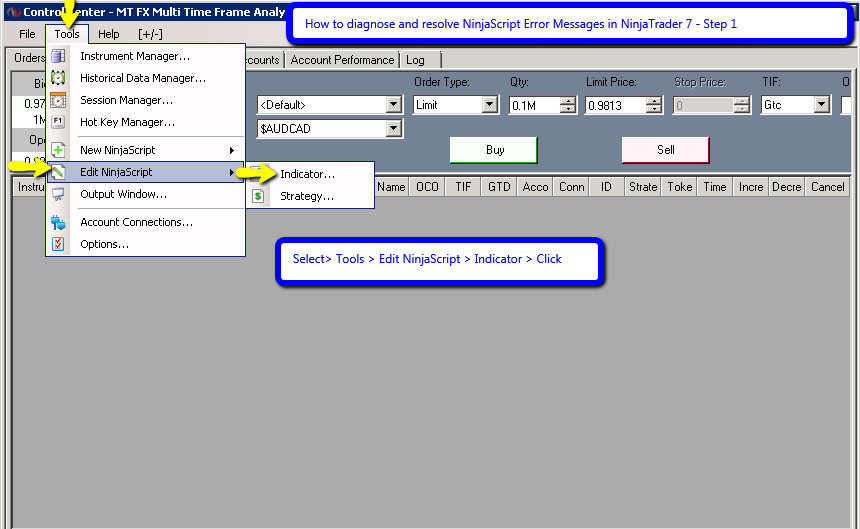
• Select an indicator and double click on it. 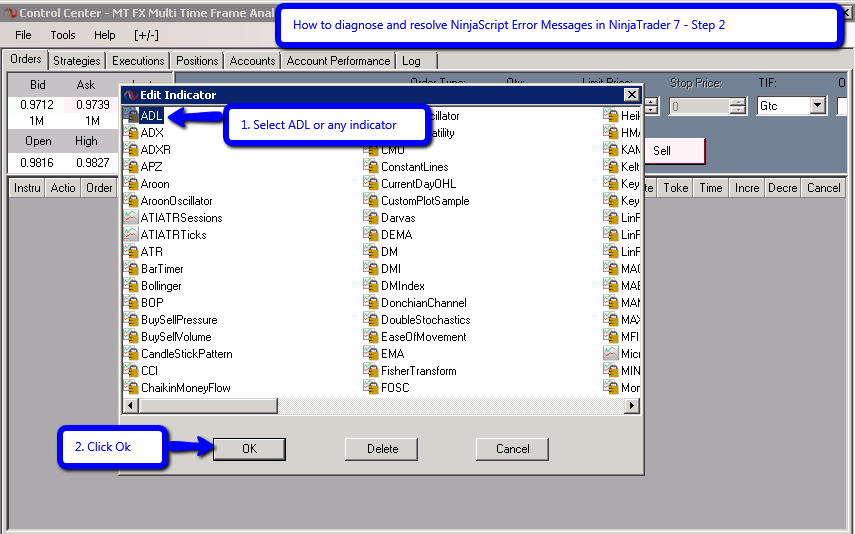
• A new window will appear and you will need to right click in the window and select Compile to compile the indicators. • At the bottom of the window a new section will appear where you can find the error locations.
 • From there you have the option to remove the indicator or debug it.
Here is a video of this process:
• http://screencast.com/t/K3plVBblUy
Also here is a forum post that describes the process and offers ways to resolve the situation:
• http://www.ninjatrader.com/support/forum/showthread.php?t=4678
If you are unsure as to what the error is indicating, please send Support a screenshot of the error with the name and description fields clearly readable.
To send a screenshot press Alt + PRINT SCREEN to take a screen shot of the selected window. Then go to Start--> Accessories--> Paint, and press CRTL + V to paste the image. Lastly, save as a jpeg file and send the file as an attachment.
OR Better
Right Click the gird and Export to Excel and send...
Error Messages Present - If other errors messages are there the above process will have eliminated the MTNTF7 as the issue - it could be that you referenced the MTNTF7 in a strategy or indicator - you will need to remove to a different folder your custom files that used the MTNTF7 SDK or Indicators- It could be that a 3rd party Assembly is mentioned in the errors if you are missing a reference - or perhaps you have a NinjaScript Code Error.
Please see the following article on how to Diagnose and resolve errors in NinjaTrader:
You can send error reports relating to MicroTrends into the Help Desk - submit a request or email us assupport@microtrends.co
For 3rd Party or other Errors please contact NinjaTrader support support@ninjatrader.com
-
Please note the version 7.0.1.68 has 3 file groups common,indicators and strategies
0
Please sign in to leave a comment.
Comments
4 comments